Monday, December 26, 2016
11 Best Registry Hacks For Windows 7
11 Best Registry Hacks For Windows 7

Have you heard about "Registry Hacking"? If not, let me tell you about it -- It is the process of modifying windows operating system configurations and settings to use the OS in an unconventional way.
1. Go to Start > Run. Then type "Regedit" in the run field, click "OK". Now you will see a dialog box saying " Do you want to allow the following program to make changes to this computer". Click on "Yes". You will see the Registry Editor:

2. Go to File > Export. A window will appear:

3. Enter a file name and then click on "Save". Thats it, you have successfully created the backup file.
THIS IS IMPORTANT
Before diving into the registry hacks, you must know some important things about editing the windows registry.
Like....
What is a key and how to create a new key?
Registry keys are like folders (see the below image).
It may contain further keys (folders) or values.
To create a new key you have to select a parent key first. Then right click on the parent key, select New > Key. Then enter a name for the key. Thats it.

Note: Values and keys are the two basic elements of the registry.
Now you may ask what the hell is the "Values"?
Values are like the files (see the image below).

It is pretty simple, first right click on the key, then select New, then select the type of value you want to add (See the image below).

Then you will be able to enter a name for the newly created value. If you want to modify the data, just double click on the value-name, a small window will appear (the window style may change):

Now you can edit the value as much as you want.
Now lets dive into the registry hacks!
- STOP WINDOWS UPDATE FROM HIJACKING SHUTDOWN/SLEEP BUTTON

Got it? If you dont want this to happen, apply this registry hack:
First open the regedit.exe and then go to the following key.
HKEY_CURRENT_USERSoftwarePoliciesMicrosoftWindowsWindowsUpdateAU
If it doesnt exist, create it.
Then add a 32-bit DWORD value called NoAUAsDefaultShutdownOption with a value of 1.
Thats it.
Note: You can still use the install updates and shutdown option.
- ADD "OPEN WITH PHOTOSHOP" TO THE RIGHT-CLICK MENU

Have you ever tried to open an unknown file?

Photoshop.exe %1

Change Photoshop.exe, if you want to access any other program.
Close the registry editor.
Thats it. The change should take effect immediately.
Moving onto the next one...
- ADD REGISTRY EDITOR TO THE CONTROL PANEL
Moving onto the next trick...
- REMOVE "SHORTCUT" TEXT FROM NEW SHORTCUTS

Here is how to do it:
1. Open the regedit.exe, then browse down to the following key:
HKEY_CURRENT_USERSoftwareMicrosoftWindowsCurrentVersionExplorer
2. On the right hand side of the window, you will find a value name "link":

3. Double click on it. A small window will appear:

4. Change the "1E" to 00. Then save it.
5. Log off and then log back on to make this change take effect.
From now on the shortcuts that you create on your computer wont have the shortcut text!
Next trick on my list is....
- HIDE DRIVES
B: 2
C: 4
D: 8
E:16
F:32
G:64
H:128
I: 256
Now you may ask "how the hell you know about these values?"
Its actually pretty simple, you can also do it. All you have to do is use this table:

If you want to hide the K drive, change the value of K to 1(in the table). Now you got a big binary number (K to A), that is, 10000000000.
Now go to any Binary to Decimal Converter, here Im using a website called "binaryhexconverter" to convert Binary to Decimal:

Moving onto the next trick...
- MAKE DISK CLEANUP TO DELETE FILES NEWER THAN 7 DAYS
Have you ever used the Disk Cleanup utility?If the answer is yes, you probably know that the disk cleanup utility only deletes files that are 7 days old.
Now, Im going to help you to change that settings, so that you will be able to delete files that are newer than 7 days using the Disk Cleanup.
First, open up the Registry Editor, then go to the following key:
HKEY_LOCAL_MACHINESOFTWAREMicrosoftWindowsCurrentVersionExplorerVolumeCachesTemporary Files

Then double click on the "LastAccess" and then enter the number of days. Thats it.
Moving onto the next one...
- ADD ENCRYPT / DECRYPT OPTIONS TO THE RIGHT-CLICK MENU
Windows built-in file encryption is pretty useful when you want to protect your files from prying eyes. But not everyone likes to go to the file properties to encrypt the file.So now Im going to show you how to add encrypt / decrypt options to the right-click menu.
First open the registry editor and then browse down to the following registry:
HKEY_CURRENT_USERSoftwareMicrosoftWindowsCurrentVersionExplorerAdvanced
Now right click on the "Advanced", then choose to create a 32 bit DWORD value, rename it as "EncryptionContextMenu" and give it a value of 1.

Thats it. Now when you right-click on a file, you’ll see a new option called Encrypt.
Next one is...
- ADD "COMMAND PROMPT WINDOW HERE" TO THE FOLDER RIGHT-CLICK MENU

Next one is...
- ADD DEFRAGMENT TO THE DRIVE RIGHT-CLICK MENU
First, open the registry editor and then browse down to the following key:
HKEY_CLASSES_ROOTDriveshell
Right click on "Shell" and create a new key called "runas". Then set the default value to "Defragment".
Note: If you want to hide this option behind the Shift key right-click menu, just add a new string called "Extended" with no value.

Next trick is...
- ADD "RUN AS ADMINISTRATOR" TO ANY FILE TYPE

If you try to extract a compressed file to the programs files directory, you probably get a lot of permission denied errors. Thats because you didnt run the extraction using administrator privileges.
In the right hand side, you will see the data value of the default item. In this case "WinRAR.ZIP".

HKEY_CLASSES_ROOTWinRAR.ZIPshellopencommand
Now you will see something like this:

4. Open the saved file in notepad and then change the "open" to "runas". Then save it.

5. Double click on the edited file to export it to the registry.
Now you can right click on a .zip and open it as administrator.
Next trick on my list is...
- ADD "COPY CONTENTS TO CLIPBOARD" TO THE RIGHT-CLICK MENU FOR TEXT FILES

So thats all. I hope you enjoyed this article. If you did, feel free to share this article with your friends... Because sharing is caring...
See ya...
You might also like:
- 36 Documentaries About Hacking & Internet
- 10 Best Free GPS Spoofer Apps For Android
- 150+ Proxy Sites To Unblock Blocked Websites
- 14 Best IP Hide Tools 2015/2016
- How To Turn Your Android Smartphone Into a Super Spy
- Resource Hacker - Windows Tool For Hackers
- Top Hacking Forums
Available link for download

Thursday, December 15, 2016
3D City driving Bus Parking Hacks and cheats
3D City driving Bus Parking Hacks and cheats
3D City driving - Bus Parking
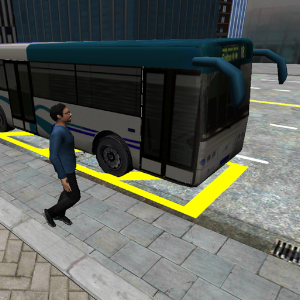
3D City driving - Bus Parking puts you behind the steering wheel of a traditional city bus and challenges you to complete the missions in and around the city. Complete the routes that you need to follow with the bus. But 3D city driving is not a standard parking game its also more a bus driver simulator because you need to pick up people and drop them off at their destination.
So learn to drive in an unknown city, open up your doors for your passengers. Try to stop in time at the right bus stop and complete your route. Open up the doors again and say goodbye to your passengers.
3D City driving - Bus Parking game features:
- More challenging than on first sight
- Realistic bus features
- Easy and exciting game play
- Huge 3D virtual city to explore
3D City driving - bus parking is a original game that is as exciting as
Please give us some support by rating our game on Google Play or following us on:
Facebook - https://www.facebook.com/VascoGames
Twitter - https://twitter.com/VascoGames
YouTube - http://goo.gl/HChVVx
Download Link : Link
3D City driving - Bus Parking Hacks and cheats,Download 3D City driving - Bus Parking Apk Download,Hack 3D City driving - Bus Parking game,Cheats 3D City driving - Bus Parking,3D City driving - Bus Parking unlimted resources,3D City driving - Bus Parking speed hack,3D City driving - Bus Parking free gems coins resources,Apk Download 3D City driving - Bus Parking,3D City driving - Bus Parking mod APK + [OGG] Data,Free gems coins 3D City driving - Bus Parking,3D City driving - Bus Parking free resources,how to hack 3D City driving - Bus Parking
Available link for download
Thursday, October 27, 2016
15 Killer Hacks for Blogger Images
15 Killer Hacks for Blogger Images
Most of the bloggers who use Blogger as their blogging platform using CSS (Cascade Style Sheet) to set height, width etc and have no idea that they can set their image height, width, border, burl, crop etc only changing blogger image permalink, nothing more nothing less. You dont believe me lets check out how we can do this.

Default Image
First check URL Structure of Blogger Image. If you upload image to blogger it by default it automatically add s1600 to its permalink, it look like this:
https://blogger.googleusercontent.com/img/b/R29vZ2xl/AVvXsEg0xyty3JM5N79RjIMv-Bvo7CniwIlQKvsWmy-mjDOhxGXLrrF57o1g4znvmAdSz0DdyA6xhzEoubu3Yn6vT1dv6LSNYvMlaxSCAlLBR4YnreMwQEl3eUZRCEnGsMDbzHLDOq1g-s9CkQKM/s1600/Killer-Hacks-for-Blogger-Images.pngSet Custom Size
You can replace s1600 from default image and try any size as you like example s600, s500 or s442 as your wish
https://blogger.googleusercontent.com/img/b/R29vZ2xl/AVvXsEg0xyty3JM5N79RjIMv-Bvo7CniwIlQKvsWmy-mjDOhxGXLrrF57o1g4znvmAdSz0DdyA6xhzEoubu3Yn6vT1dv6LSNYvMlaxSCAlLBR4YnreMwQEl3eUZRCEnGsMDbzHLDOq1g-s9CkQKM/s442/Killer-Hacks-for-Blogger-Images.pngSet Max Resolution of Image
You can set in the URL is max resolution of image up to s2650 in blogger
https://blogger.googleusercontent.com/img/b/R29vZ2xl/AVvXsEg0xyty3JM5N79RjIMv-Bvo7CniwIlQKvsWmy-mjDOhxGXLrrF57o1g4znvmAdSz0DdyA6xhzEoubu3Yn6vT1dv6LSNYvMlaxSCAlLBR4YnreMwQEl3eUZRCEnGsMDbzHLDOq1g-s9CkQKM/s2650/Killer-Hacks-for-Blogger-Images.pngCrop the image
Replace s1600 to s600-c in image url, you will get image as square means it height and width exactly 600px. You can also use s600-p to crop the image
https://blogger.googleusercontent.com/img/b/R29vZ2xl/AVvXsEg0xyty3JM5N79RjIMv-Bvo7CniwIlQKvsWmy-mjDOhxGXLrrF57o1g4znvmAdSz0DdyA6xhzEoubu3Yn6vT1dv6LSNYvMlaxSCAlLBR4YnreMwQEl3eUZRCEnGsMDbzHLDOq1g-s9CkQKM/s600-c/Killer-Hacks-for-Blogger-Images.pngAdd Border to the image
Replace s1600 to s1600-b10 in image url, you will get 10px black color border on the image. I have tried maximum to b50 but you can try more.
https://blogger.googleusercontent.com/img/b/R29vZ2xl/AVvXsEg0xyty3JM5N79RjIMv-Bvo7CniwIlQKvsWmy-mjDOhxGXLrrF57o1g4znvmAdSz0DdyA6xhzEoubu3Yn6vT1dv6LSNYvMlaxSCAlLBR4YnreMwQEl3eUZRCEnGsMDbzHLDOq1g-s9CkQKM/s1600-b10/Killer-Hacks-for-Blogger-Images.pngDownload the Image
Replace s1600 to s1600-d in image url, you will get provide a download link for image.
https://blogger.googleusercontent.com/img/b/R29vZ2xl/AVvXsEg0xyty3JM5N79RjIMv-Bvo7CniwIlQKvsWmy-mjDOhxGXLrrF57o1g4znvmAdSz0DdyA6xhzEoubu3Yn6vT1dv6LSNYvMlaxSCAlLBR4YnreMwQEl3eUZRCEnGsMDbzHLDOq1g-s9CkQKM/s1600-d/Killer-Hacks-for-Blogger-Images.pngOriginal Image
Replace s1600 to s0 in image url, you will get original version image what you have upload
https://blogger.googleusercontent.com/img/b/R29vZ2xl/AVvXsEg0xyty3JM5N79RjIMv-Bvo7CniwIlQKvsWmy-mjDOhxGXLrrF57o1g4znvmAdSz0DdyA6xhzEoubu3Yn6vT1dv6LSNYvMlaxSCAlLBR4YnreMwQEl3eUZRCEnGsMDbzHLDOq1g-s9CkQKM/s0/Killer-Hacks-for-Blogger-Images.pngXML Image Object
Replace s1600 to s1600-g in image url, you will get xml code of image
https://blogger.googleusercontent.com/img/b/R29vZ2xl/AVvXsEg0xyty3JM5N79RjIMv-Bvo7CniwIlQKvsWmy-mjDOhxGXLrrF57o1g4znvmAdSz0DdyA6xhzEoubu3Yn6vT1dv6LSNYvMlaxSCAlLBR4YnreMwQEl3eUZRCEnGsMDbzHLDOq1g-s9CkQKM/s1600-g/Killer-Hacks-for-Blogger-Images.pngSet custom width
Replace s1600 to w180 in image and image width didnt go beyond 180px. Yes you can also try any other size
https://blogger.googleusercontent.com/img/b/R29vZ2xl/AVvXsEg0xyty3JM5N79RjIMv-Bvo7CniwIlQKvsWmy-mjDOhxGXLrrF57o1g4znvmAdSz0DdyA6xhzEoubu3Yn6vT1dv6LSNYvMlaxSCAlLBR4YnreMwQEl3eUZRCEnGsMDbzHLDOq1g-s9CkQKM/w180/Killer-Hacks-for-Blogger-Images.pngSet custom height
Replace s1600 to h180 in image and image height didnt go beyond 180px.
https://blogger.googleusercontent.com/img/b/R29vZ2xl/AVvXsEg0xyty3JM5N79RjIMv-Bvo7CniwIlQKvsWmy-mjDOhxGXLrrF57o1g4znvmAdSz0DdyA6xhzEoubu3Yn6vT1dv6LSNYvMlaxSCAlLBR4YnreMwQEl3eUZRCEnGsMDbzHLDOq1g-s9CkQKM/h180/Killer-Hacks-for-Blogger-Images.pngSet custom width and height
Replace s1600 to w300-h180 in image url it give perfect width of 300px and height of 180px
https://blogger.googleusercontent.com/img/b/R29vZ2xl/AVvXsEg0xyty3JM5N79RjIMv-Bvo7CniwIlQKvsWmy-mjDOhxGXLrrF57o1g4znvmAdSz0DdyA6xhzEoubu3Yn6vT1dv6LSNYvMlaxSCAlLBR4YnreMwQEl3eUZRCEnGsMDbzHLDOq1g-s9CkQKM/w300-h180/Killer-Hacks-for-Blogger-Images.pngSet Custom size and width
Replace s1600 to s500-w180 in image url it give maximum width of 180px
https://blogger.googleusercontent.com/img/b/R29vZ2xl/AVvXsEg0xyty3JM5N79RjIMv-Bvo7CniwIlQKvsWmy-mjDOhxGXLrrF57o1g4znvmAdSz0DdyA6xhzEoubu3Yn6vT1dv6LSNYvMlaxSCAlLBR4YnreMwQEl3eUZRCEnGsMDbzHLDOq1g-s9CkQKM/s500-w180/Killer-Hacks-for-Blogger-Images.pngSet Custom size and height
Replace s1600 to s500-h180 in image url it give maximum height of 180px
https://blogger.googleusercontent.com/img/b/R29vZ2xl/AVvXsEg0xyty3JM5N79RjIMv-Bvo7CniwIlQKvsWmy-mjDOhxGXLrrF57o1g4znvmAdSz0DdyA6xhzEoubu3Yn6vT1dv6LSNYvMlaxSCAlLBR4YnreMwQEl3eUZRCEnGsMDbzHLDOq1g-s9CkQKM/s500-h180/Killer-Hacks-for-Blogger-Images.pngSet Custom size, height and width
Replace s1600 to s600-w280-h180 in image url and just check it out
https://blogger.googleusercontent.com/img/b/R29vZ2xl/AVvXsEg0xyty3JM5N79RjIMv-Bvo7CniwIlQKvsWmy-mjDOhxGXLrrF57o1g4znvmAdSz0DdyA6xhzEoubu3Yn6vT1dv6LSNYvMlaxSCAlLBR4YnreMwQEl3eUZRCEnGsMDbzHLDOq1g-s9CkQKM/s600-w280-h180/Killer-Hacks-for-Blogger-Images.pngNo Thumbnail Appear
Replace s1600 to s1600-m1 in image url, you will get error image thumbnail
https://blogger.googleusercontent.com/img/b/R29vZ2xl/AVvXsEg0xyty3JM5N79RjIMv-Bvo7CniwIlQKvsWmy-mjDOhxGXLrrF57o1g4znvmAdSz0DdyA6xhzEoubu3Yn6vT1dv6LSNYvMlaxSCAlLBR4YnreMwQEl3eUZRCEnGsMDbzHLDOq1g-s9CkQKM/s1600-m1/Killer-Hacks-for-Blogger-Images.pngEnjoy this trick and comment below if you have other trick regarding blogger. You can use this trick in Google Plus, Picasa or any other google service
Available link for download